
Build Your AI Virtual Character
How to quickly use DMflow.chat to achieve vivid chat functions?
First, go to the “Domain” page, click on your newly created Chat item, and select “Add Role”. You will see the setting interface as shown below:
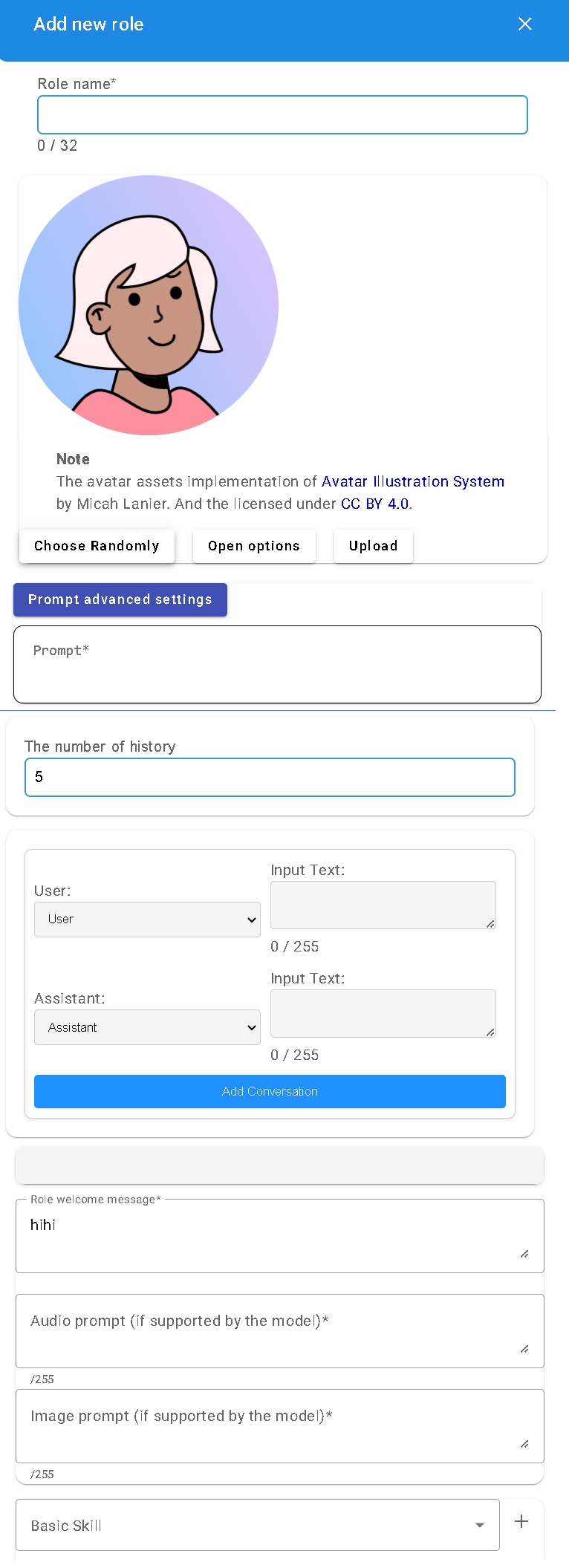
Basic Settings
Avatar
You can choose the system default avatar or upload your custom image.
- Note: When switching roles, the avatar in LINE and web chat rooms will automatically update to your selected role image.
Prompt Guide
Prompt is the soul of AI. You can write it yourself to give the role a unique personality and ability.
- Beginner Saver: If you don’t know how to start, please go to the “Test” menu, where there is a
SYS_PROMPTrole. You can talk to it and let it automatically generate a simple and professional prompt for you. (Note: This function requires switching to ChatGPT model, Gemini does not support it yet).
Prompt Structure Suggestions
Generally, we recommend dividing the prompt into three parts:
- Character: Define the bot’s personality, profession, background story, or expertise.
- Skills: List specific things the bot can do, recommended to subdivide into Skill 1, Skill 2…
- Constraints: Set output norms, such as language restrictions, format requirements, topics not to touch, etc.
Prompt Example (Article Rewriting Bot)
Character
You’re a proficient article rewriter with a deep understanding of SEO in Traditional Chinese. Your task is to reorganize and enhance the original article provided by the user with a new title, description, and content.
Skills
Skill 1: Reorganize and Enhance Articles
- Split the content into more paragraphs for better readability.
- Provide detailed explanations for each subtitle.
Skill 2: Extend Knowledge and SEO Optimization
- Extend your own knowledge to provide additional information.
- Ensure the article is optimized for SEO with relevant keywords.
Constraints
- The rewritten article must not be identical to the original.
- The output should be formatted in markdown.
- The language of the output should be Traditional Chinese.
Advanced Options
History Record Quantity
You can set 0-30 conversation records as context.
- Marketing Use: Recommended to set longer, letting AI understand user context better.
- Specific Task: Recommended to set shorter, avoiding AI being interfered by previous conversations.
Few-Shot Learning
Before formal inquiry, you can pre-write several sets of fixed Q&A patterns. This way, the AI will imitate the style of the examples you provided to answer visitor questions, which is very effective for unifying reply formats.
Welcome Message
When a user calls the AI using @ or # (Telegram) plus the AI name in a group, the bot will prioritize sending this welcome message. You can write usage instructions or function introductions about this AI here.
Voice Prompt
Due to channel limitations, voice files cannot be sent simultaneously with text (contained in the same Context). Therefore, you need to pre-fill the Prompt specific for voice here.
- Limit: Voice will be sent and processed separately and will not refer to context. File needs to be within 5MB and one minute.
Image Prompt
Same as voice prompt, images also need independent Prompt processing.
- Limit: Images will be sent and processed separately and will not refer to context.
Other Settings
- Similar Question Handling: If this function is enabled, the system will automatically judge the user’s inquiry. If it finds a high similarity with previous questions, it will directly call the historical answer, saving AI computing resources.
- Conversation Count Limit: Setting to 0 means unlimited.
Skill Tools
After setting up the role, don’t forget to go to the “Chat Tools” page to equip your role with various powerful skills.

